
Introduction
Odoo.sh is one of the official service offered by Odoo, but not Odoo itself. Odoo.sh is an official cloud platform + DevOps from odoo that used to run Odoo Enterprise / Community, Custom modules, complete with Git, staging, backup and CI. In other words, Odoo.sh is a cloud platform for running odoo with customization and secure development workflow.
If you are hosting your ERP on Odoo.sh, you are already using a platform designed with redundancy in mind. However, understanding how to backup your database is crucial for safe development practices and disaster recovery. In this comprehensive guide, we will walk you through the methods to back up your Odoo.sh database to ensure your business never misses a beat.
Manual Backup via Odoo.sh Dashboard
For most users, the graphical interface is the simplest way to download a database. This method is perfect for creating one-off backups before major changes.
1. Log in to Odoo.sh dashboard
Log in to your Odoo.sh dahsboard using your github that already connect with Odoo.sh the first time you set-up. Then, navigate to your Project.
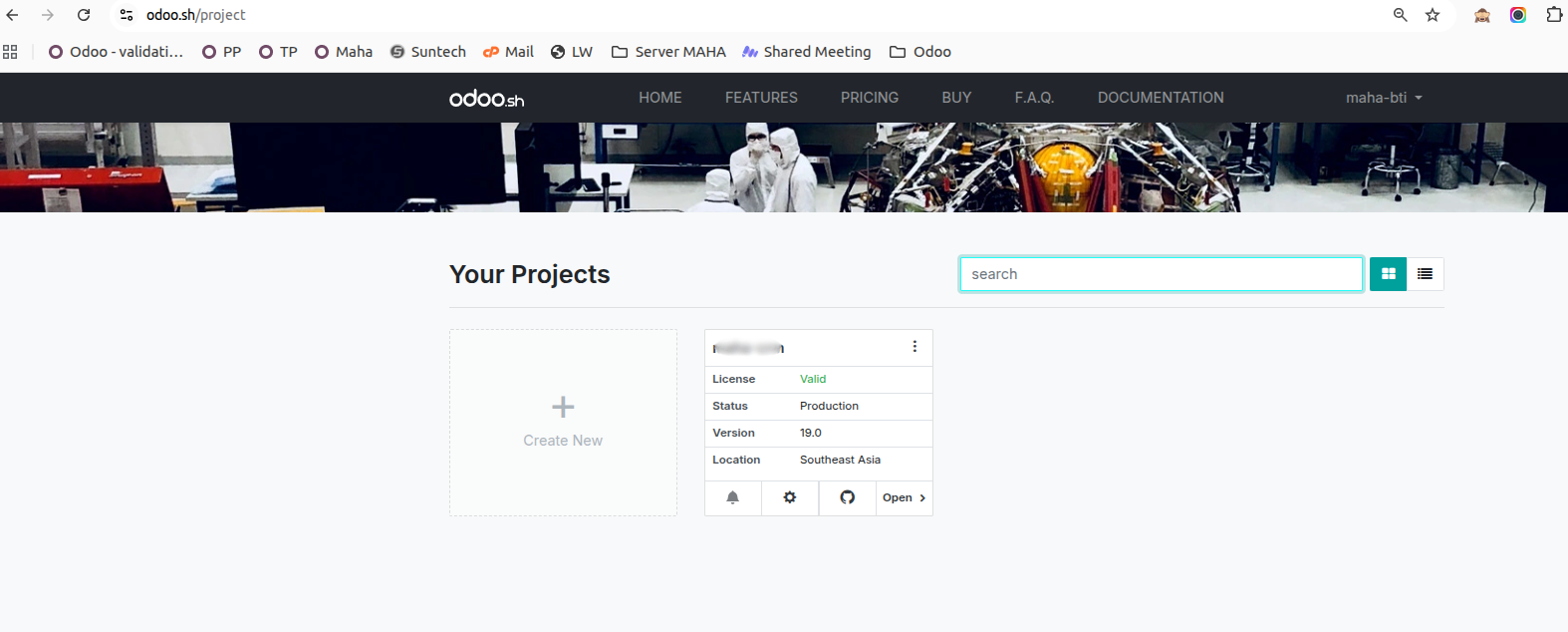
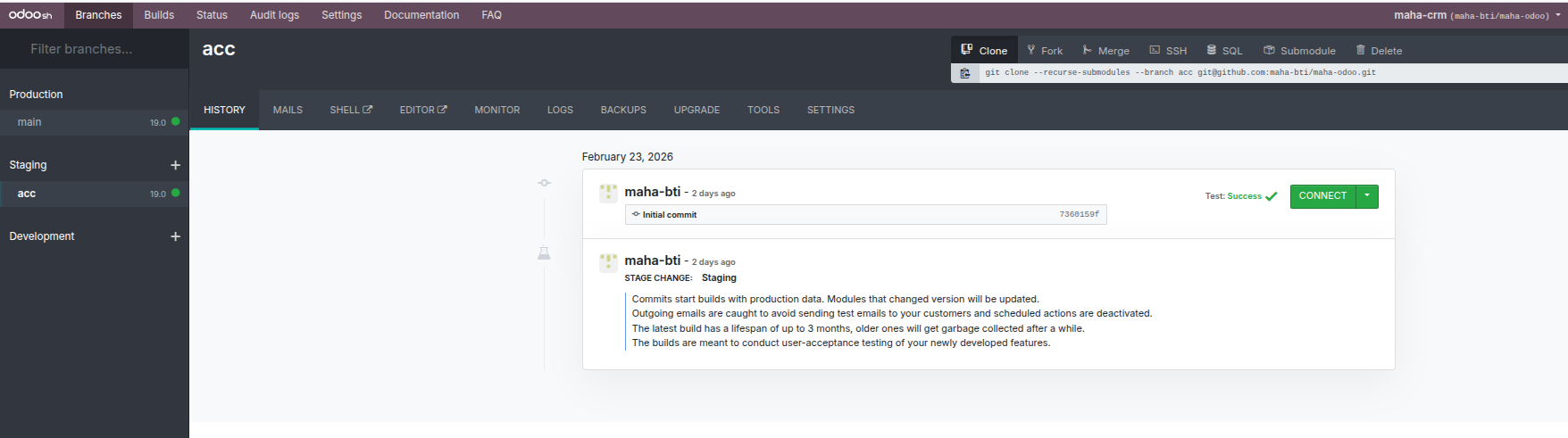
2. Select the branch to back up
When you have several branch like Production, Staging, or Development. Choose one of the branch you want to back up, click on it.
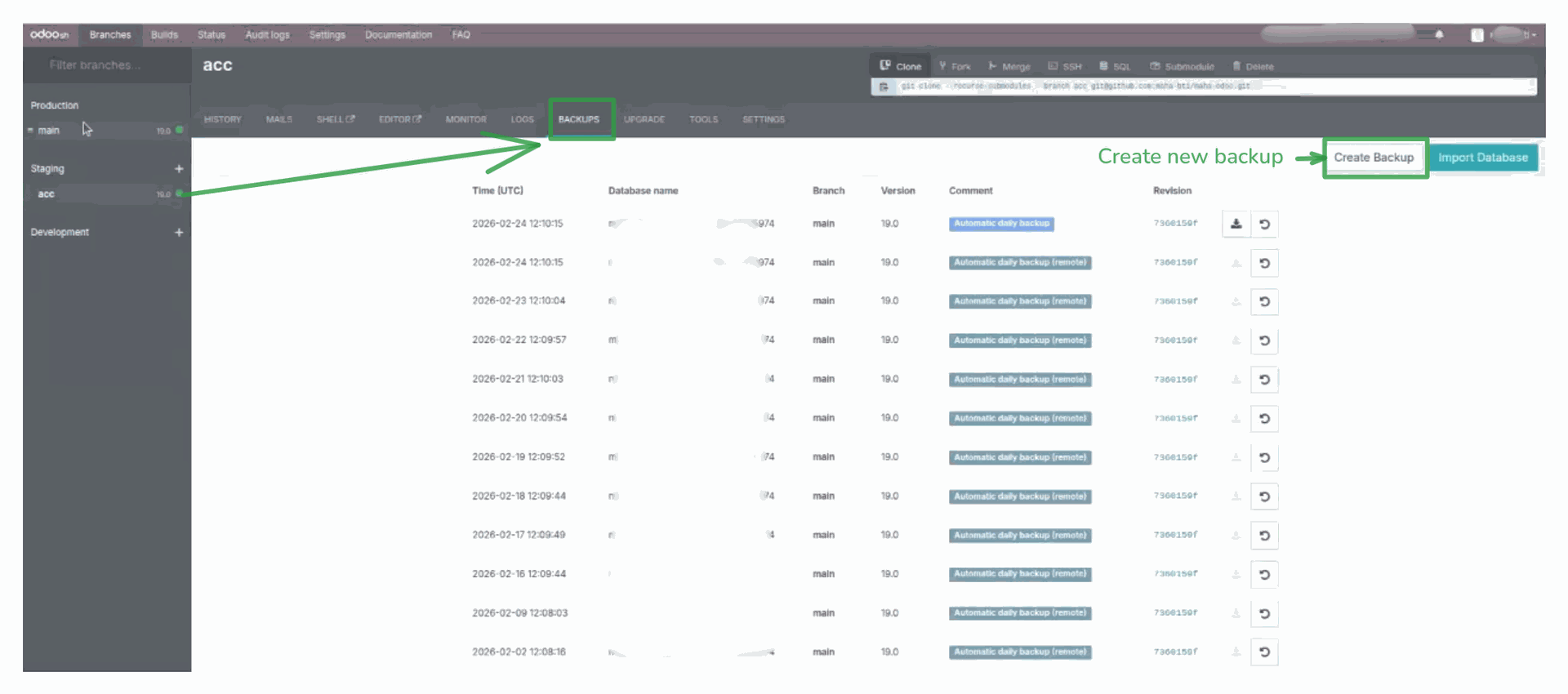
3. Navigate to Backups
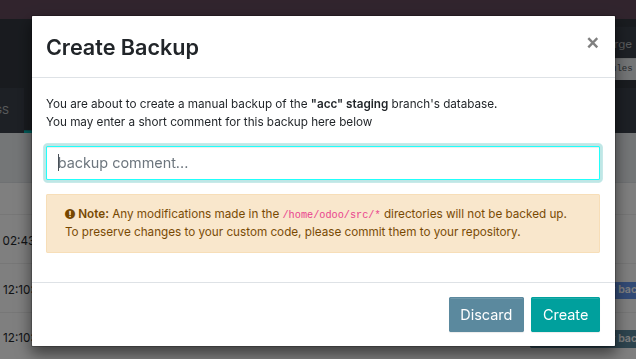
After you click selected the branch navigate to Backups menu, it will shows you the list of backup or listed of daily backup. You can select one of the listed or you can create the new one by clicking "Create Backup".
Fill the comment and click Create. This will take a moment
After everything done the new database will shows on the list or there will be notification on the upper right corner that says Backup Ready and you can click Go to Backup.
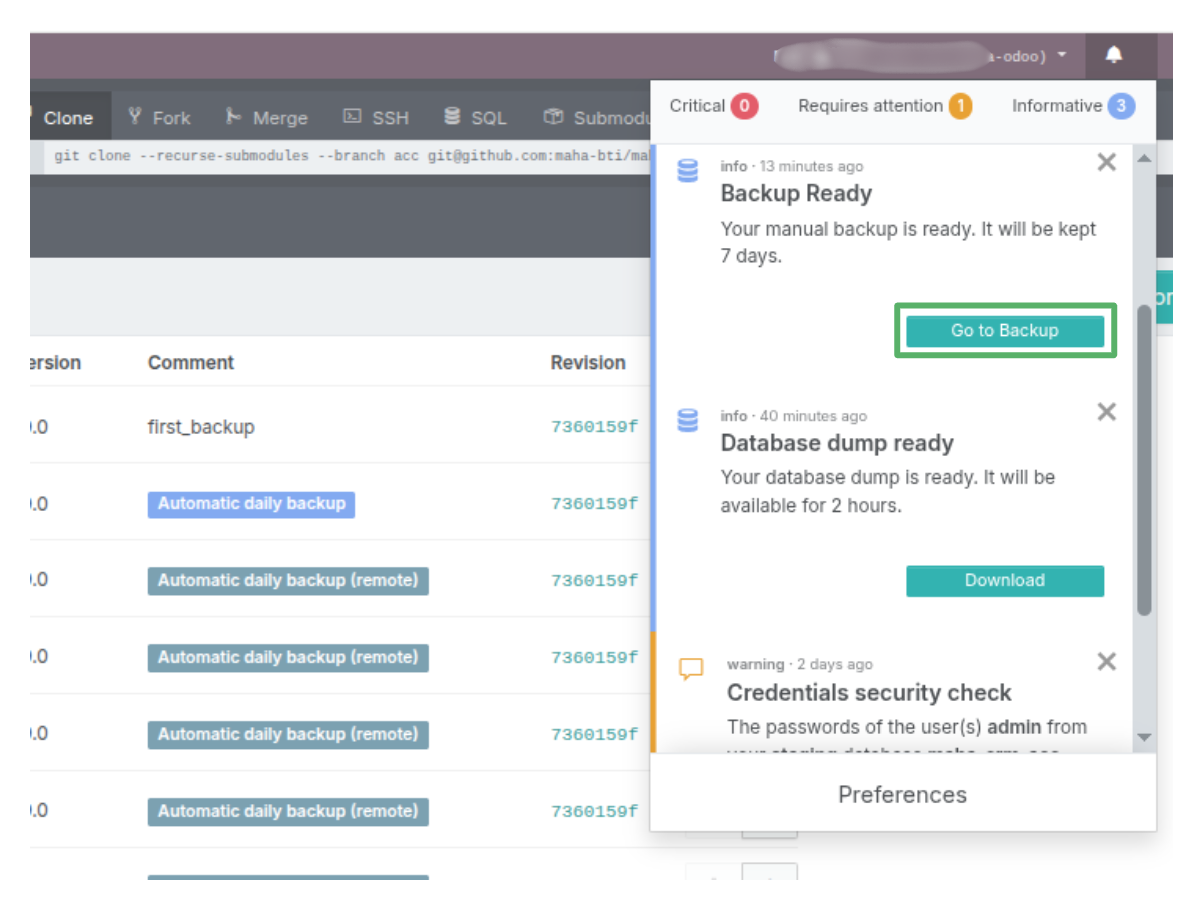
4. Download Database
Click Downloads icon and there's a pop-up to choose the database dump settings, after that click Start.
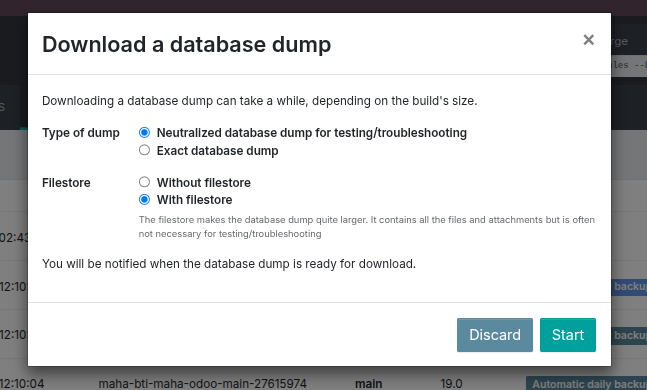
Type of dump : This setting determines how the data inside the database is processed before it is packaged.
- Neutralized : Creates a copy of the database while anonymizing sensitive information. Recommended for staging or development environments.
- Exact database dump : Creates an exact copy of the live database, including real customer data, transactional records, and confidential settings. Handle with care.
Filestore : This setting determines whether you download the database structure (just the text/numbers) or the actual physical files attached to it.
- Without : Downloads only the PostgreSQL database dump (data only).
- With : Downloads a .zip file containing both the PostgreSQL dump and the filestore directory, which includes attachments such as images and PDFs.
Again this process will take a moment and after done the notification will shows message "database ready" and you can click Download and you willrecieve a .zip file containing your PostgreSQL, dump, and filestore folder.
Conclusion
Managing data safety on Odoo.sh does not require command-line expertise or third-party tools. As demonstrated in this guide, the Odoo.sh dashboard provides all the essential features needed to control and download database backups directly from your browser.
By understanding the available backup options, you can make informed decisions every time you create a backup. Make it a best practice to manually download a backup before major changes and store it securely outside of Odoo.sh for maximum peace of mind.