
In modern business operations, fast and accurate data analysis is essential. Odoo provides a powerful reporting ecosystem, and two of the most commonly used tools are Pivot Tables and Excel Export Templates. These features allow users to explore data in-depth, build custom reports, and export them in a clean and professional Excel format—without requiring any technical knowledge.
In this article, we will walk through how these tools work, when to use them, and how you can maximize your reporting capabilities in Odoo.
1. Understanding Pivot Tables in Odoo
Pivot Tables in Odoo allow users to summarize, analyze, and explore large datasets. The interface is interactive and flexible, giving you the ability to rearrange data, apply filters, and drill down into specific details.
1.1 What You Can Do with Pivot Tables
- Summarize large amounts of data
- Group data by fields (e.g., by Product, Salesperson, Month)
- Add and remove measures (e.g., Quantity, Subtotal, Count)
- Drill down to underlying records
- Export the pivot table as an Excel file
1.2 How to Access Pivot Tables in Odoo
- Go to any module that supports reporting (Examples: Sales, Inventory, Accounting, Project).
- Click on the Pivot View icon in the top-right corner.
- Drag fields into Rows, Columns, or Measures.
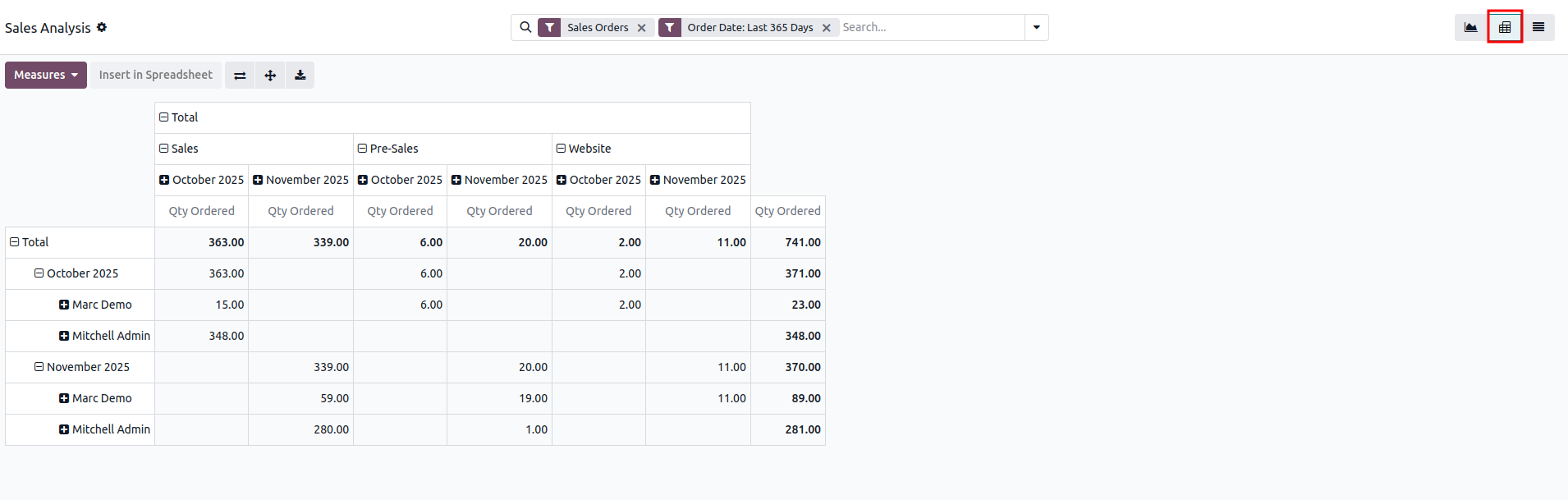
1.3 Example: Sales Analysis Pivot Table
You can build a pivot table showing revenue per month per salesperson:
- Rows: Salesperson
- Columns: Order Date (Month)
- Measure: Total Amount
This quickly reveals performance trends and helps with strategic planning.
2. Excel Export Templates in Odoo
While Pivot Tables help you analyze data inside Odoo, sometimes you need a more customized layout—such as a formatted report for management, a template for external partners, or a downloadable spreadsheet with formulas.
Excel Export Templates allow you to:
✔ Create custom Excel layouts
✔ Insert Odoo data dynamically
✔ Apply styles, formulas, and formatting
✔ Export directly from a form, tree, or wizard
2.1 What Are Excel Export Templates?
These are reusable Excel files created using a combination of:
- Regular Excel formatting
- Dynamic placeholders mapped to Odoo fields
- Optional formulas and calculations
Once configured, users can click Export and instantly download a filled report with real Odoo data.
2.2 Where Excel Export Templates Are Used
Depending on your Odoo setup (Odoo Studio, custom modules, or Community apps), you can use Excel Templates for:
- Sales Quotations / Order Reports
- Stock Movement Reports
- Employee Payroll Summaries
- Financial Statements
- Inventory Valuation Reports
- Attendance or Timesheet Exports
2.3 Example Template Structure
Inside your Excel template, you place something like:
A | B |
|---|---|
Customer Name | {{ object.partner_id.name }} |
Order Date | {{ object.date_order }} |
Total Amount | {{ object.amount_total }} |
And for one2many lines (like order lines):
{{ for line in object.order_line }}
{{ line.product_id.name }} | {{ line.product_uom_qty }} | {{ line.price_subtotal }}
{{ endfor }}
Once exported, this sheet becomes a complete sales order report.


3. Connecting Pivot Tables and Excel Export Templates
Odoo allows you to combine both concepts for advanced reporting:
✔ Step 1: Analyze Data Using Pivot Tables
You explore and understand your dataset.
✔ Step 2: Export Data to Excel
Pivot Tables can be exported directly as an Excel file.
✔ Step 3: Use Excel Export Templates for Custom Layouts
Format the exported data into a more polished, branded template.
✔ Step 4: Automate the Reporting
Odoo Studio or custom modules can add buttons such as:
- Download Sales Summary
- Export Inventory Report
- Generate Payroll Sheet
This enables non-technical users to generate professional reports in one click.
4. Best Practices for Using Pivot Tables & Excel Templates
1. Define your reporting goals first
Identify what insights or data your team needs.
2. Keep templates clean and simple
Avoid overly complex formulas unless required.
3. Use meaningful field names
This makes the template easier to maintain.
4. Test your template with different datasets
Ensure layout stability even when data volume changes.
5. Control user access
Assign rights so only authorized users can generate sensitive reports.
5. Conclusion
Pivot Tables and Excel Export Templates make Odoo a powerful reporting ecosystem. Whether you're analyzing thousands of sales transactions or preparing a polished finance report for management, these tools allow you to convert raw data into actionable insights with just a few clicks.
With Odoo, you can:
✔ Analyze data visually
✔ Export reports quickly
✔ Create reusable professional templates
✔ Automate reporting for your entire company
Mastering these features will significantly improve your efficiency and decision-making process across all departments.