
Prerequisites
Before starting, ensure you have:
- Administrator Access to your Odoo 19 instance.
- SMTP Details from your email provider (Server address, Port, and SSL/TLS requirements).
- App Password (if using Gmail or Outlook with 2FA enabled).
Step 1: Enable Developer Mode
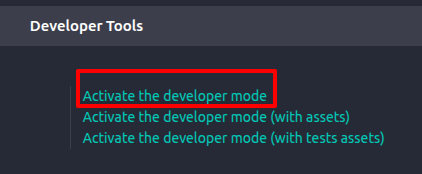
Odoo hides technical mail configurations by default. You must enable Developer Mode to access the necessary menus.
- Go to Settings.
- Scroll to the bottom and click Activate the developer mode.
- Once activated, a "bug" icon will appear in the top header.
Step 2: Configure Custom Email Servers
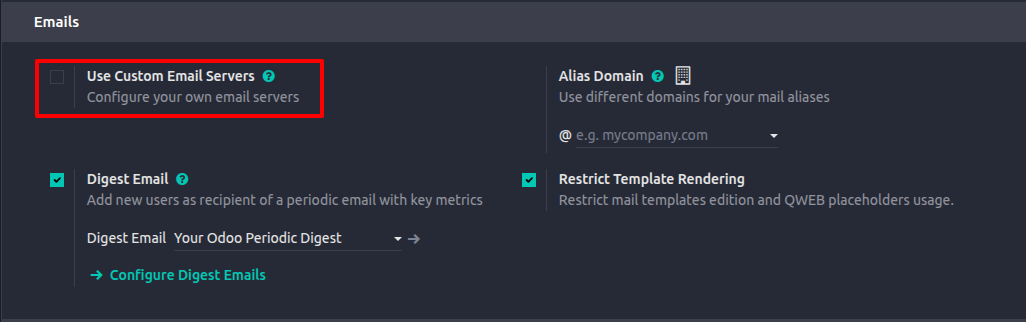
Odoo 19 requires you to explicitly allow custom servers if you are not using the default Odoo mail server.
- Navigate to Settings > General Settings.
- Find the Discuss or Emails section.
- Check the box for Use Custom Email Servers.
- Click Save.
Step 3: Create the Outgoing Mail Server
Now, you will input your provider's technical credentials.
- Go to Settings > Technical > Email > Outgoing Mail Servers.
- Click New.
- Fill in the following fields:
| Field | Description | Example (Gmail) |
| Description | A name for the server | Gmail - Company Main |
| SMTP Server | The address of your mail provider | smtp.gmail.com |
| SMTP Port | Usually 465 (SSL) or 587 (TLS) | 465 |
| Connection Encryption | Choose SSL/TLS or STARTTLS | SSL/TLS |
| Username | Your full email address | admin@yourcompany.com |
| Password | Your email password or App Password | xxxx-xxxx-xxxx-xxxx |
Step 4: Testing the Connection
This is the most critical step to ensure your settings are correct.
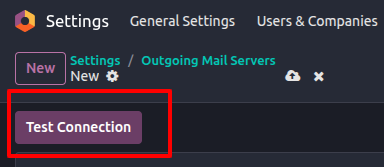
- Click the Test Connection button at the top left of the form.
- Success: A green notification will appear saying "Connection Test Succeeded! Everything seems properly set up."
- Failure: A red error message will appear. Common issues include:
- Port 25 blocked: Many cloud providers block port 25. Use 465 or 587.
- Authentication Failed: Double-check your App Password or 2FA settings.
Common SMTP Settings for Quick Reference
Google / Gmail
- SMTP Server: smtp.gmail.com
- Port: 465 (SSL) or 587 (TLS)
- Security: SSL/TLS
- Note: Requires an App Password generated in Google Security settings.
Microsoft Outlook / Office 365
- SMTP Server: smtp.office365.com
- Port: 587
- Security: STARTTLS (TLS)