
In Odoo 19, the Quote Calculator has evolved from a simple pricing tool into a robust, spreadsheet-integrated engine. It allows sales teams to handle complex cost estimations—such as assembly labor, logistics, and multi-component manufacturing—directly within a Sales Order.
1. Core Functionality and Architecture
The Quote Calculator functions as a bridge between your Quotation Templates and a dynamic spreadsheet backend. Unlike static pricing, the calculator allows for real-time variable adjustments (e.g., changing dimensions, labor hours, or shipping distances) which then sync back to the Sales Order lines.
2. Setting Up the Calculator
To utilize the Quote Calculator, you must first enable and configure it within your Quotation Templates.
Step-by-Step Configuration:
- Enable Templates: Navigate to Sales > Configuration > Settings and ensure Quotation Templates is active.
- Create Template: Go to Sales > Configuration > Quotation Templates and create a new template (e.g., "Custom Furniture Assembly").
- Link Calculator: On the template form, locate the Quote Calculator field. You can select an existing spreadsheet template or create a new one on the fly.
- Define Lines: Add your base products to the Lines tab. These products will be the recipients of the calculated values.
3. Working with the Spreadsheet Interface
Once the Quote Calculator is active on a quotation, a "Quote Calculator" Smart Button appears at the top of the Sales Order.
Key Tabs in the Calculator in the default quote calculato template:
Products: Lists all items from the SO. Used to sync the final "Updated Unit Price."
Calculation: The "Engine" room. Here you define variables like material costs, labor rates, and overheads.
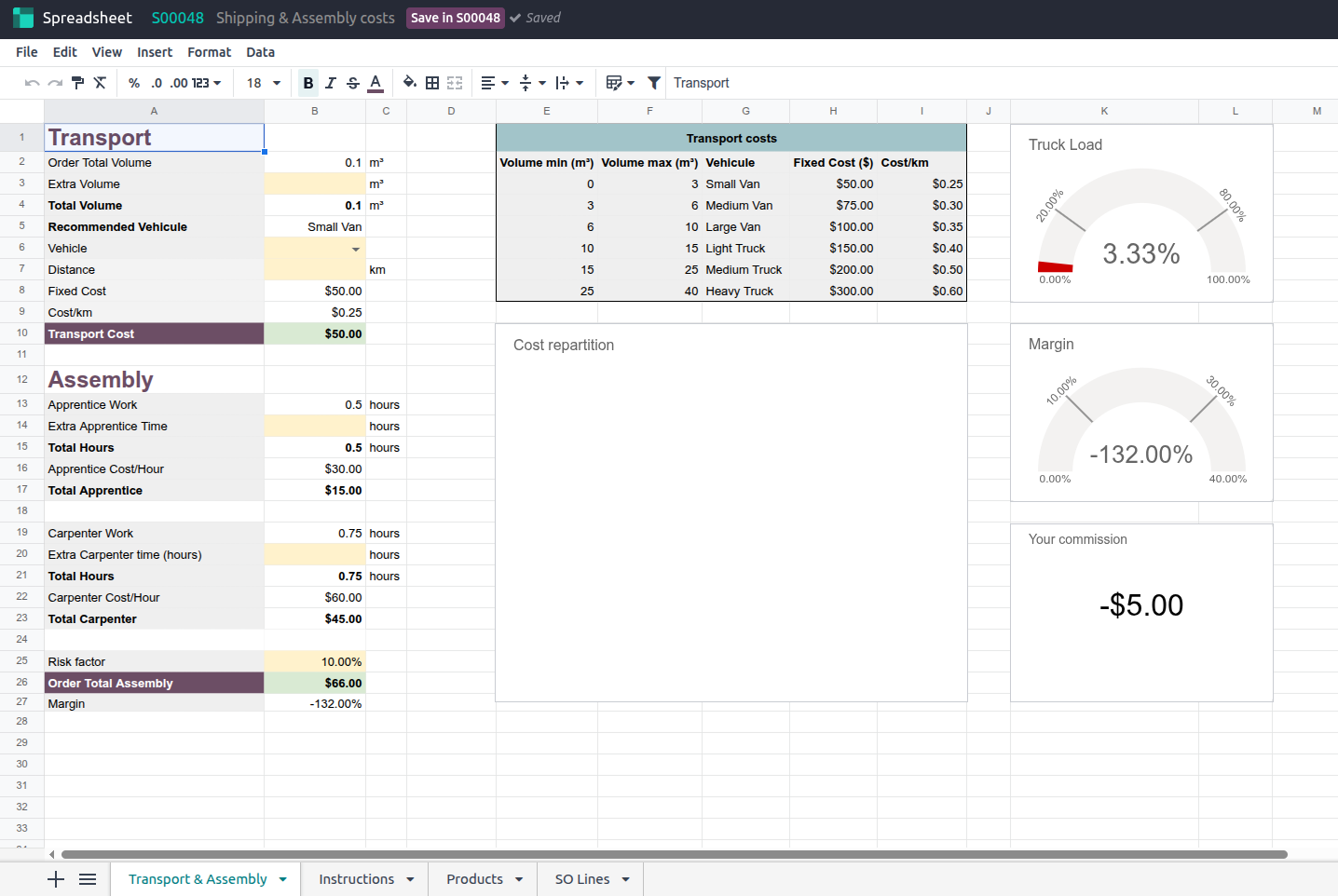
Shipping & Assembly: Specific for logistics-heavy businesses; calculates truck loads, assembly time, and transit fees.
a
4. Syncing Data to the Sales Order
The most critical technical step is ensuring the spreadsheet "talks" to the Sales Order.
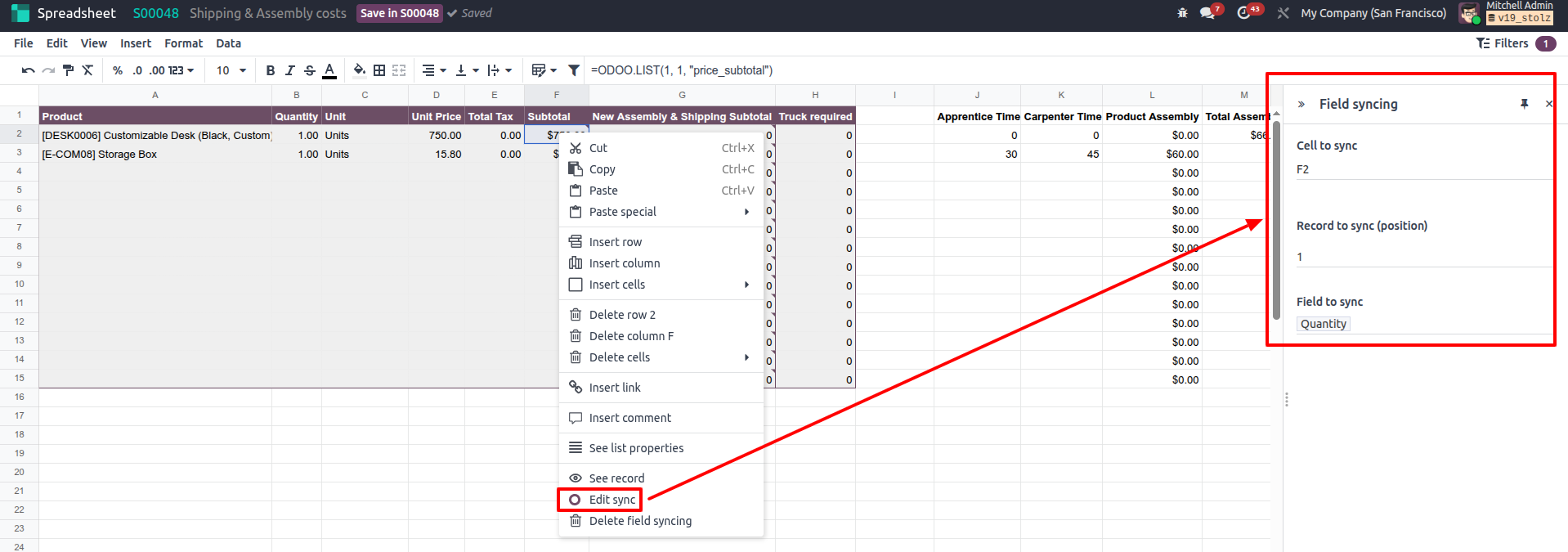
- Edit Sync: Within the spreadsheet, right-click the cell containing your final calculated price.
- Mapping: Select Edit Sync. Choose the corresponding Sales Order Line and set the Field to Sync (typically Unit Price).
- Global Variables: Any cell highlighted in Yellow is typically an editable variable. Changing these will immediately trigger the logic to update the synced Sales Order price.
5. Practical Use Case: Service & Logistics
In Odoo 19, the calculator excels at "Service" products. For instance, if you sell a product that requires a Carpenter and an Apprentice:
- The calculator can split Assembly Time between different labor tiers.
- It can automatically pull the Volume and Weight from the product files to calculate shipping surcharges.
- Transparency: You can share a "clean" version of this breakdown with the customer via the PDF Quote Builder.
Pro Tip: Use the Terms & Conditions tab in the Quotation Template to automatically include the calculation logic's assumptions in the final legal document sent to the client.